

Inviting colleagues
Open Users.
Press Invite.
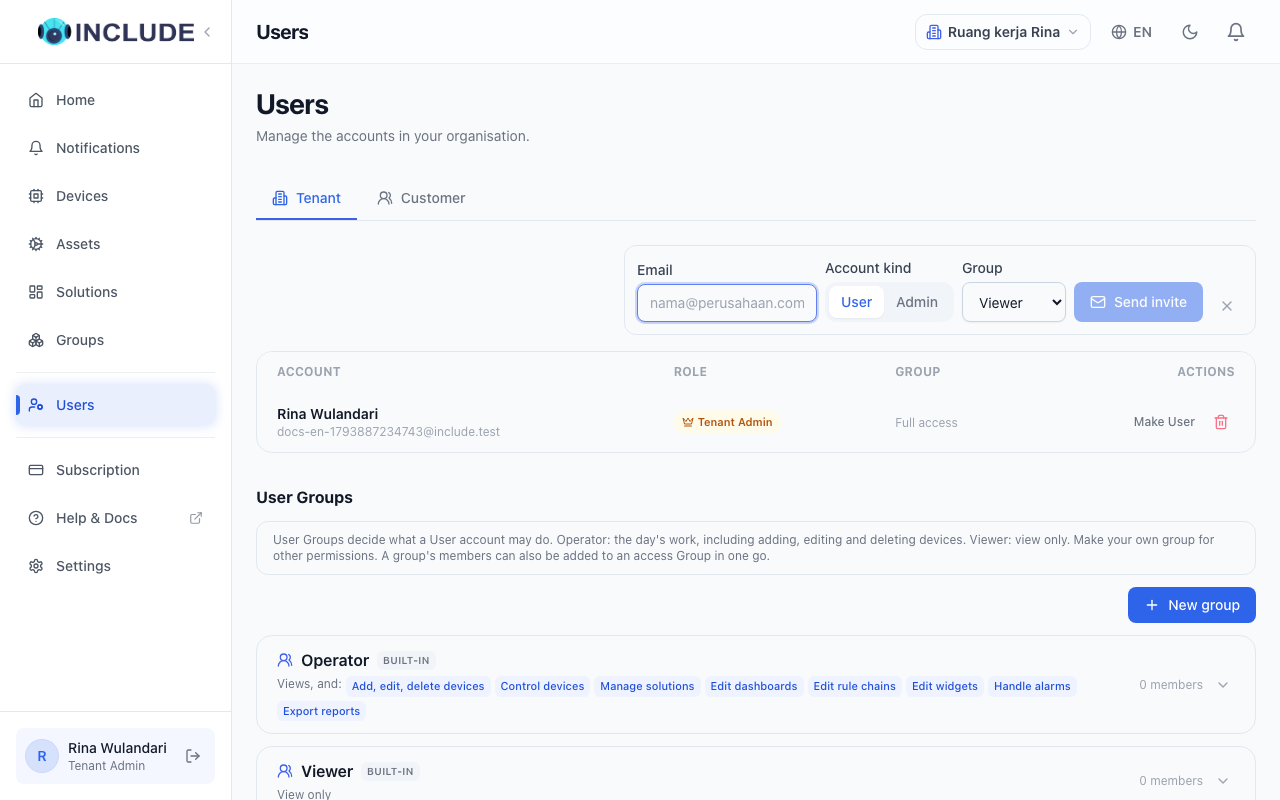
Enter your colleague's email.
Pick the Account kind: an Admin may manage the whole Organisation, a User follows their group.
For a User, pick the Group:
- Operator: the day's work, including adding, editing and deleting devices.
- Viewer: view only.
Press Send invite.
Your colleague receives an email with an invitation link. Opening it, they sign up or sign in and land straight in your Organisation. There is no ID to type.
If email sending is not active, the screen shows the invitation link instead. Send it yourself, for example on WhatsApp.
Tenant and Customer
Users has two tabs. Tenant holds your own Organisation's accounts. Customer holds your Customers; click one to invite its accounts and pick the group of each User there.
Changing a User's group
In the list of accounts, pick a new group in the Group column. Their permissions change at once.
Under User Groups, Operator and Viewer are always there and cannot be changed. For other permissions, press New group, then Set permissions and tick what its members may do.