

Raspberry Pi
Send readings from a Raspberry Pi with Python, then have it run by itself every time the Pi starts. It works the same on other Linux computers, such as an Orange Pi or a Debian-based industrial gateway.
What you need
- A Raspberry Pi with Raspberry Pi OS (Bookworm or newer), connected to the internet.
- Terminal access to the Pi, directly or over SSH.
- A device created in INCLUDE. None yet? Follow Your own device, step 1.
1. Set up Python
Raspberry Pi OS refuses pip install into the system Python. Create a separate environment once:
python3 -m venv ~/include
~/include/bin/pip install requests paho-mqtt
2. Get the code from INCLUDE
- Open your device, the Pengaturan (settings) tab, then Koneksi & Integrasi.
- In Code examples, choose HTTP and the Python tab, then Copy.
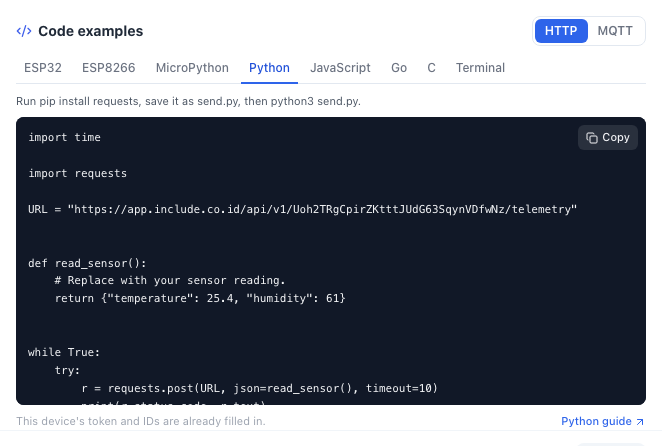
3. Save and run
nano ~/send.py      # paste the code, save with Ctrl+O, exit with Ctrl+X
~/include/bin/python ~/send.pyimport time
import requests
URL = "https://app.include.co.id/api/v1/YOUR_DEVICE_TOKEN/telemetry"
def read_sensor():
# Replace with your sensor reading.
return {"temperature": 25.4, "humidity": 61}
while True:
try:
r = requests.post(URL, json=read_sensor(), timeout=10)
print(r.status_code, r.text)
except requests.RequestException as e:
print("send failed:", e)
time.sleep(10)When it works, every 10 seconds you see:
202 {"ok":true}Stop it with Ctrl+C.
4. Send a real reading
One you can try on any Pi: its own processor temperature. Replace read_sensor():
def read_sensor():
    with open("/sys/class/thermal/thermal_zone0/temp") as f:
        return {"cpu_temperature": int(f.read()) / 1000}
For a sensor on the GPIO pins, install its library into the same environment, for example ~/include/bin/pip install adafruit-circuitpython-dht, and return its value from read_sensor().
5. Start it with the Pi
Create a systemd service:
sudo nano /etc/systemd/system/include-sensor.serviceWith this content (replace pi with your user name):
[Unit]
Description=Send sensor readings to INCLUDE
After=network-online.target
Wants=network-online.target

[Service]
User=pi
ExecStart=/home/pi/include/bin/python /home/pi/send.py
Restart=always
RestartSec=10

[Install]
WantedBy=multi-user.target
Then turn it on:
sudo systemctl daemon-reload
sudo systemctl enable --now include-sensor
journalctl -u include-sensor -f     # watch its output, exit with Ctrl+C
The program now runs whenever the Pi starts, and is restarted if it stops.
Over MQTT
Choose MQTT and the Python tab in Code examples, save it as ~/publish.py, and run it the same way. For the systemd service, replace send.py with publish.py.
import json
import time

import paho.mqtt.client as mqtt

HOST = "app.include.co.id"
PORT = 1883
DEVICE_ID = "YOUR_DEVICE_ID"
DEVICE_TOKEN = "YOUR_DEVICE_TOKEN"
TOPIC = "includeapps/YOUR_ORG_ID/YOUR_SOLUTION_SLUG/YOUR_DEVICE_ID/telemetry"


def read_sensor():
    # Replace with your sensor reading.
    return {"temperature": 25.4, "humidity": 61}


def on_connect(client, userdata, flags, reason_code, properties):
    print("connected:", reason_code)


client = mqtt.Client(mqtt.CallbackAPIVersion.VERSION2, client_id=DEVICE_ID)
client.username_pw_set(DEVICE_ID, DEVICE_TOKEN)
client.on_connect = on_connect
client.connect(HOST, PORT)
client.loop_start()

while True:
    info = client.publish(TOPIC, json.dumps(read_sensor()), qos=1)
    info.wait_for_publish(timeout=10)
    print("sent:", info.is_published())
    time.sleep(10)
If it does not work
| Message | Meaning |
|---|---|
error: externally-managed-environment | pip ran outside the venv. Repeat step 1. |
ModuleNotFoundError: No module named 'requests' | The program ran with the system python3. Use ~/include/bin/python. |
send failed: ... NameResolutionError | The Pi is not on the internet yet. |
401 ... | Wrong token. Copy the code again from Koneksi & Integrasi. |
connected: Not authorized | Wrong Device ID or Device Token (MQTT). |
See also No data arriving.