

MicroPython
Send readings with MicroPython from an ESP32, a Raspberry Pi Pico W, or another board with WiFi. The code is plain Python, saved as main.py on the board.
What you need
- A board running MicroPython 1.23 or newer. Download the firmware for your board at micropython.org/download.
- Thonny to copy files to the board and see its output.
- 2.4 GHz WiFi.
- A device created in INCLUDE. None yet? Follow Your own device, step 1.
1. Connect Thonny to the board
- Plug in the board and open Thonny.
- Run > Configure interpreter.
- Choose MicroPython (ESP32) or MicroPython (Raspberry Pi Pico), and the board's port.
- Press OK. The Shell panel shows
>>>.
2. Get the code from INCLUDE
- Open your device, the Pengaturan (settings) tab, then Koneksi & Integrasi.
- In Code examples, choose HTTP and the MicroPython tab, then Copy.
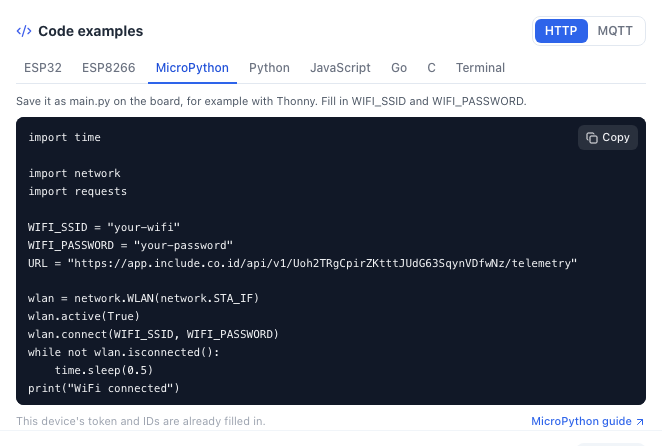
3. Save it as main.py
import time

import network
import requests

WIFI_SSID = "your-wifi"
WIFI_PASSWORD = "your-password"
URL = "https://app.include.co.id/api/v1/YOUR_DEVICE_TOKEN/telemetry"

wlan = network.WLAN(network.STA_IF)
wlan.active(True)
wlan.connect(WIFI_SSID, WIFI_PASSWORD)
while not wlan.isconnected():
    time.sleep(0.5)
print("WiFi connected")


def read_sensor():
    # Replace with your sensor reading.
    return {"temperature": 25.4, "humidity": 61}


while True:
    try:
        r = requests.post(URL, json=read_sensor())
        print(r.status_code, r.text)
        r.close()
    except OSError as e:
        print("send failed:", e)
time.sleep(10)- Paste it into a new file in Thonny.
- Fill in
WIFI_SSIDandWIFI_PASSWORD, and put your sensor reading inread_sensor(). - File > Save as > MicroPython device, named
main.py. - Press the board's reset button, or Run > Send EOF / Soft reboot.
In the Shell panel:
WiFi connected
202 {"ok":true}
The board runs main.py every time it powers up, so it keeps sending after you unplug it from the computer.
Over MQTT
In Code examples, choose MQTT and the MicroPython tab.
import json
import time

import network
from umqtt.simple import MQTTClient

WIFI_SSID = "your-wifi"
WIFI_PASSWORD = "your-password"
HOST = "app.include.co.id"
DEVICE_ID = "YOUR_DEVICE_ID"
DEVICE_TOKEN = "YOUR_DEVICE_TOKEN"
TOPIC = "includeapps/YOUR_ORG_ID/YOUR_SOLUTION_SLUG/YOUR_DEVICE_ID/telemetry"

wlan = network.WLAN(network.STA_IF)
wlan.active(True)
wlan.connect(WIFI_SSID, WIFI_PASSWORD)
while not wlan.isconnected():
    time.sleep(0.5)
print("WiFi connected")

client = MQTTClient(DEVICE_ID, HOST, port=1883, user=DEVICE_ID, password=DEVICE_TOKEN,
                    keepalive=60)
client.connect()
print("connected")


def read_sensor():
    # Replace with your sensor reading.
    return {"temperature": 25.4, "humidity": 61}


while True:
    client.publish(TOPIC, json.dumps(read_sensor()))
    print("sent")
    time.sleep(10)
If you get ImportError: no module named 'umqtt', install it first from the Shell, with the board on WiFi:
import mip
mip.install("umqtt.simple")
For ImportError: no module named 'requests' it is the same, with mip.install("requests").
This example uses port 1883. For an encrypted connection, choose port 8883 (TLS) in Code examples:
import json
import ssl
import time

import network
from umqtt.simple import MQTTClient

WIFI_SSID = "your-wifi"
WIFI_PASSWORD = "your-password"
HOST = "app.include.co.id"
DEVICE_ID = "YOUR_DEVICE_ID"
DEVICE_TOKEN = "YOUR_DEVICE_TOKEN"
TOPIC = "includeapps/YOUR_ORG_ID/YOUR_SOLUTION_SLUG/YOUR_DEVICE_ID/telemetry"

wlan = network.WLAN(network.STA_IF)
wlan.active(True)
wlan.connect(WIFI_SSID, WIFI_PASSWORD)
while not wlan.isconnected():
    time.sleep(0.5)
print("WiFi connected")

context = ssl.SSLContext(ssl.PROTOCOL_TLS_CLIENT)
context.verify_mode = ssl.CERT_NONE
client = MQTTClient(DEVICE_ID, HOST, port=8883, user=DEVICE_ID, password=DEVICE_TOKEN,
                    keepalive=60, ssl=context)
client.connect()
print("connected")


def read_sensor():
    # Replace with your sensor reading.
    return {"temperature": 25.4, "humidity": 61}


while True:
    client.publish(TOPIC, json.dumps(read_sensor()))
    print("sent")
    time.sleep(10)
About certificates
The HTTP example and the port 8883 MQTT example encrypt the connection but do not check the server certificate. The port 1883 MQTT example is not encrypted at all. Checking it in MicroPython needs the root certificate in DER form and the correct time from ntptime, and support differs between boards. For devices on networks you do not control, use ESP32 with Arduino, which checks the certificate.
Reading a real sensor
For a DHT22 temperature sensor on pin 4 (the dht module ships with the ESP32 and Pico W firmware):
import dht
from machine import Pin

sensor = dht.DHT22(Pin(4))


def read_sensor():
    sensor.measure()
    return {"temperature": sensor.temperature(), "humidity": sensor.humidity()}
If it does not work
| In the Shell | Meaning |
|---|---|
Never WiFi connected | Wrong WiFi name or password, or the WiFi is 5 GHz. |
OSError: -202 or [Errno 113] | The server cannot be reached. Check internet on that WiFi. |
401 | Wrong token. Copy the code again from Koneksi & Integrasi. |
MQTTException: 5 | Wrong Device ID or Device Token. |
MemoryError | The board ran out of memory. Remove other code from main.py, or use HTTP. |
See also No data arriving.