

Your own domain and brand
On the Business and Enterprise plans, the app can be opened at your own domain, for example app.yourcompany.com, with your logo, icon, colours and app name. The documentation comes along: docs.yourcompany.com holds the same guides as this site, with your logo and app name.
1. Set up the app domain
- Open Pengaturan (settings), the White Label tab.
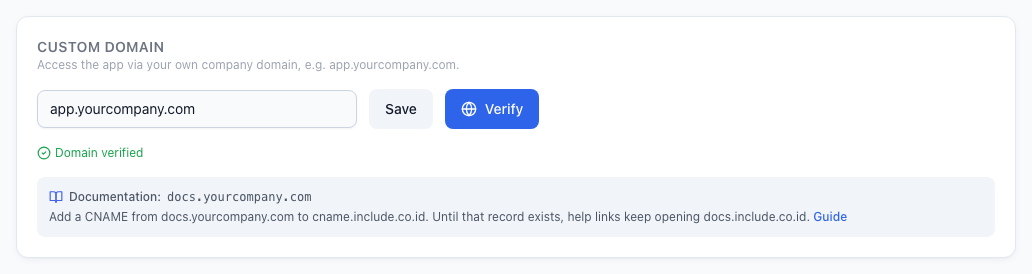
- Under Domain Sendiri (own domain), enter the app domain, for example
app.yourcompany.com, then Simpan (save). - At your domain's DNS provider, create a CNAME record from
app.yourcompany.comtocname.include.co.id. - Back under Domain Sendiri, press Verifikasi (verify).
Once verified, the app opens at that address. The HTTPS certificate is made automatically on the first visit, so the first visit can take a few seconds longer.
2. Set up the documentation domain
Below a verified domain, Domain Sendiri shows its documentation address:
| App domain | Documentation address |
|---|---|
app.yourcompany.com | docs.yourcompany.com |
yourcompany.com | docs.yourcompany.com |
iot.yourcompany.com | docs.iot.yourcompany.com |
- Create a CNAME record from that documentation address to
cname.include.co.id. - Wait for DNS to spread, usually a few minutes.
- Open Pengaturan > White Label again. Active appears next to the documentation address.
From then on, every help link in the app on your domain opens the documentation on your domain. Until that record exists, help links keep opening docs.include.co.id, so no link ever leads nowhere.
3. Choose the app colour
- Open Pengaturan (settings), the White Label tab.
- Under Tema Warna (colour theme), pick a preset, for example Emerald, or enter a colour code under Primary, for example
#059669. - Check Pratinjau (preview): a piece of the app in that colour, before anything is saved.
- Press Simpan (save) at the bottom of the form.
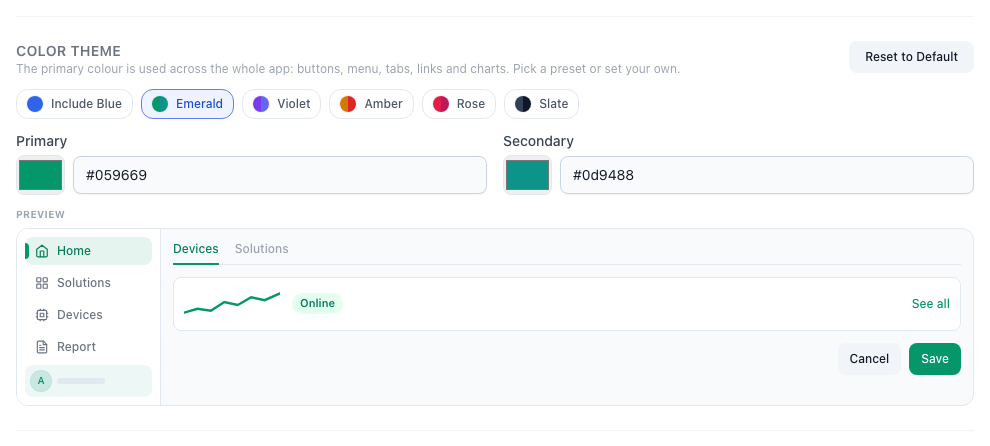
The colour applies across the whole app at once: buttons, the menu, tabs, links, and charts that have no colour of their own. Status colours stay as they are: green for normal, yellow for warning, red for critical.
A colour too light for white text, such as a pale yellow, is used a little darker on buttons. Pratinjau shows the result.
Secondary tints the account box under the menu, and Warna aksen halaman login (login page accent colour) colours the sign-in page on your domain. Leave either empty to follow Primary.
What changes in email
Account emails wear your brand: email verification, password reset, invitations, alarms, scheduled reports and trial reminders.
- The sender name and the start of the subject use Nama Aplikasi (app name), for example [Mitra Sejahtera] Reset kata sandi.
- The email header shows the light logo from Ikon & Logo (icon and logo), or the icon when there is no logo. Buttons and headings use the Primary colour.
- The email footer uses Teks footer (footer text) when it is filled in.
- Links in the email open your app domain once that domain is Aktif (active). Invitation links keep opening app.include.co.id, because the invited person is not yet a member of your domain.
The sender address stays INCLUDE's so the email passes SPF and DKIM checks and stays out of the spam folder. Emails follow your brand as long as your plan includes White Label.
What changes in the documentation
- The logo and icon in the header, the browser tab title and the footer use your brand.
- The word "INCLUDE" in the text becomes your app name.
- The app address in the text and in the code examples becomes your domain, for example
https://app.yourcompany.com/api/v1/.../telemetry.
The MQTT host stays app.include.co.id. The MQTT broker's certificate is for that name, so a device that connects to another domain on port 8883 would reject the certificate.
The app name, logo and icon are set in the same White Label tab, under Nama Aplikasi (app name) and Ikon & Logo (icon and logo).